 Paul L.

Short answer: open Add Words, tap Import File, and choose a CSV or Excel file with two columns — vocabulary and translation — or paste a link to a Google Sheet. The app reads the file, shows you how many words it found, and lets you pick which ones to keep before anything is added. Import is a Premium feature.
Key takeaways
- In Add Words, tap Import File and choose a CSV or .xlsx file (vocabulary in column one, translation in column two) or paste a Google Sheets link. Import is Premium.
- Prepare the file: the first row is skipped as a header, .xls is rejected, and a Google Sheet must be shared as 'Anyone with the link can view'.
- Before anything is added you pick which words to keep; duplicates are left out, and imported words join the same spaced-repetition rotation.
Why a spreadsheet list goes unused
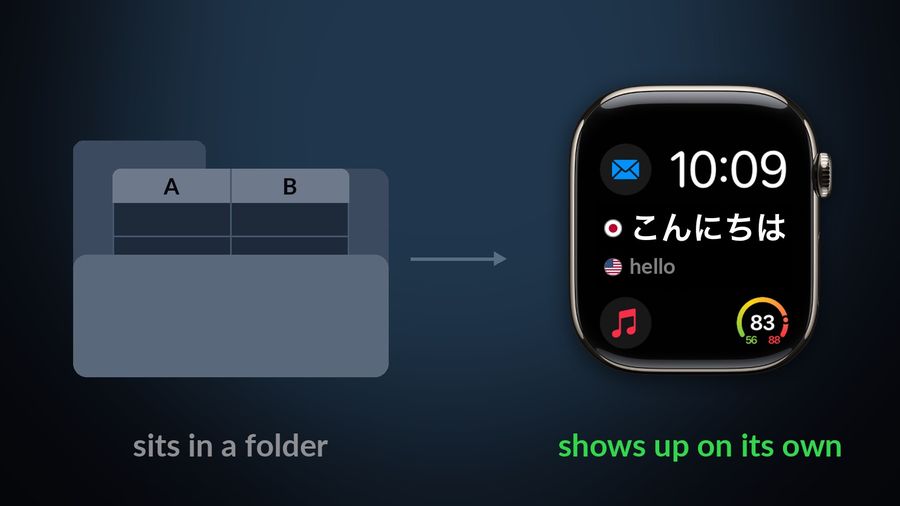
A lot of vocabulary lists start the same way: a Google Sheet from a class, a column of words copied out of a textbook, a list built while planning a trip. The list is genuinely useful the day it is made, and then it sits in a folder, because a spreadsheet has no mechanism to remind you to open it. Nothing schedules the words, nothing brings back the ones you have forgotten, and a file you have to remember to check is a file you eventually stop checking.
Flashcard tools solve part of this, but usually by asking for a different kind of commitment: a review queue you sit down to clear, the way Anki and similar apps work. Watch Your Language takes a different route — it reads the list you already made and folds it into the same passive schedule as everything else in the app, so the words show up on their own instead of waiting for you to remember them.
How to prepare the file
The app accepts CSV and Excel (.xlsx) files, and Google Sheets by link. Older .xls files are rejected outright — the app tells you to save the file as .xlsx or CSV instead and try again. The file needs two columns: vocabulary in the first, translation in the second. The first row is treated as a header and skipped, so it is safe to label the columns "vocabulary" and "translation" the way the app's own example file does. Before you import anything, the Import File screen shows a small mock spreadsheet grid, columns labelled A and B, with a few real words in the language pair you currently have set — vocabulary in column A, translation in column B — so you can check your own file matches that layout before you go looking for a file picker.
| File type | What happens |
|---|---|
| CSV | Read directly |
| Excel (.xlsx) | Read directly |
| Legacy Excel (.xls) | Rejected — save as .xlsx or CSV first |
| Google Sheets link | Read from the link, if shared as "Anyone with the link can view" |
For a Google Sheet, there is one extra step beyond the two columns: the sheet has to be shared with "Anyone with the link can view." The app fetches the sheet directly from its shareable link rather than asking you to sign in, so if the link is restricted to specific people, the import fails until you change the sharing setting. A row that is missing a translation, or has only one column, is skipped rather than stopping the whole import — you will just see how many rows had a problem alongside the words that did come through.

How the import works
From the Add Words screen, Import File opens two buttons: "Import CSV / Excel File," which opens the file picker, and "Import Google Spreadsheet," which opens a dialog asking for the sheet's URL. Free accounts see an "Unlock File Import" screen instead — file import, like unlimited custom words, is part of the Premium subscription.
After you pick a file or paste a link, the app reads it and reports how many words it found. Before anything is added, you get a list of every word it parsed — vocabulary and translation side by side — each one selected by default with a checkbox you can clear, plus a "Select All" / "Unselect All" toggle for the whole list. Only the words still checked when you confirm are added, which is useful if your spreadsheet mixes several topics and you only want part of it. Anything already in your word list, matched by the same vocabulary and the same translation, is left out automatically so you do not end up with duplicates.
What happens after the import
Imported words are not held apart from the rest of your vocabulary — they go into the same rotation as any pre-made pack, scheduled by spaced repetition rather than shown in file order. From there they appear the same way every other word does: on the iPhone Lock Screen and Home Screen widgets, on iPad widgets, and in the Apple Watch complications, a few at a time, with the words you keep getting wrong coming back more often.
A spreadsheet is one of three ways to add your own words. You can also type words in directly, or point your iPhone camera at handwritten notes and let the app read them. All three feed the same list, so a spreadsheet you built months ago and a page of notes you photograph tomorrow end up scheduled exactly the same way, alongside the 10,000+ words already in the app's pre-made packs.


Watch Your Language is built for exactly this: a list of words you already have, wherever it came from, put on a schedule you never have to manage. Import your spreadsheet once, and the words it contains start showing up on your Lock Screen and Apple Watch face like any other pack, with no review queue to keep clearing.